Русский
 English
- Topvisor Help Center /
- Rank Tracker /
- Rank tracking and interface /
- Sorting and Filters
How to sort and filter keywords
Last modified:
06/10/2026
To build custom reports you can sort keywords, for example, by search volume, or hide keywords using filters. You can export the resulting reports in any format.
How to sort and filter keywords
- Go toRank Tracker.
- ClickSort orFilter.
- Select a necessary option.
How can I see keywords that don't have target URLs assigned to them?
UseFilter to see where you need to assign a target URL or check for a match to a ranked one. Read more about target links →
How SERP Features filter works
- The list of SERP Features in the filter is the same for all search engines, but in each we track a different number of features. Therefore, additional blocks that are not available in the selected search engine are displayed in light gray. You can see which SERP Features in which SE we are tracking at this article →
- SERP Feature options in the filter may be inactive if no checks have been performed for the project, or if checks were performed but the selected period in the Calendar contains no data. Select 1 Year and Period to view recent checks and use the SERP Features filter;
- AI SERP Features indicate whether AI Overviews or Alice AI Quick Answers appear in the search results, regardless of whether the tracked site is included in that block;
- AI SERP Features work in conjunction with other SERP Features based on "AND" logic. This means that if you select both "AI Answers" and "Video" the filtered results will show only those keywords where both AI Answers and Videos appear simultaneously in the search results;
-
Other SERP Features (aside from AI Answers) operate on "OR" basis. This means that if you tick Videos and Images, the filtered results will show keywords for which the search engine has:
- only Videos block;
- only Images block;
- both Videos and Images blocks.
Save sorting inKeywords 📑
The sorting from Rank Tracker is not saved when you switch to another tool. To save sorting, make it in the Keywords section.
How to sort and filter keywords and groups in Keywords →
The sorting from Rank Tracker is not saved when you switch to another tool. To save sorting, make it in the Keywords section.
How to sort and filter keywords and groups in Keywords →
To sort by search volume, you can click on the word Volume in the table.
If Volume's option Global is enabled, keywords will be sorted by Global Search Volume 🌍
If you enable Global Volume display and did a sorting, keywords will be sorted by Global search volume.
If you enable Global Volume display and did a sorting, keywords will be sorted by Global search volume.
Types of sorting
- Alphabetically (A‑Z, Z‑A);
- By volume (9‑1, 1‑9);
- By target URL (keywords with target URLs would be on top, then keywords would be sorted alphabetically by URLs);
- By relevant URL / URL ranked in SERP (keywords with no ranked URLs would be on top, then keywords would be sorted alphabetically by URLs);
- By matching of target URL and URL ranked in SERP;
- By rankings dynamics over period (might come in handy for finding keywords that got ranked or bounced from Top);
- By default (reset the applied sorting).
How to sort keywords by rankings
- Go toRank Tracker.
- Click on the check date.
- Click the date again to change the sort order.
How to sort keywords by traffic
- Go toRank Tracker.
- Click on the number of visits in the cell with check date.
- Click the number of visits again to change the sort order.
How to filter keywords
By tags
By volatility of rank change
Rankings can slightly change, which prevents you from finding keywords which ranks changed drastically. To hide keywords with slightly changed ranks, hover over the dynamics filter and enter the desired value.

By taking part in checks
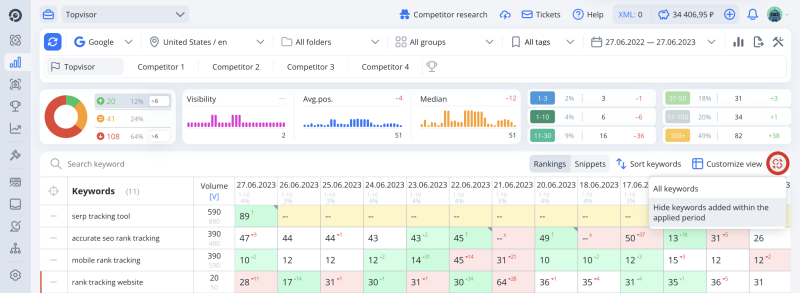
New keywords can interfere with metrics analysis in Summary, so you can hide them. Select Hide keywords added within the applied period to hide keywords that did not take part in both extreme (the first and the last) checks of the period.